
How to locate and attend to a lead from its card
Learn how to search for a lead, review its data, check the history, and work with calls and WhatsApp from a single view.
-
Step 1
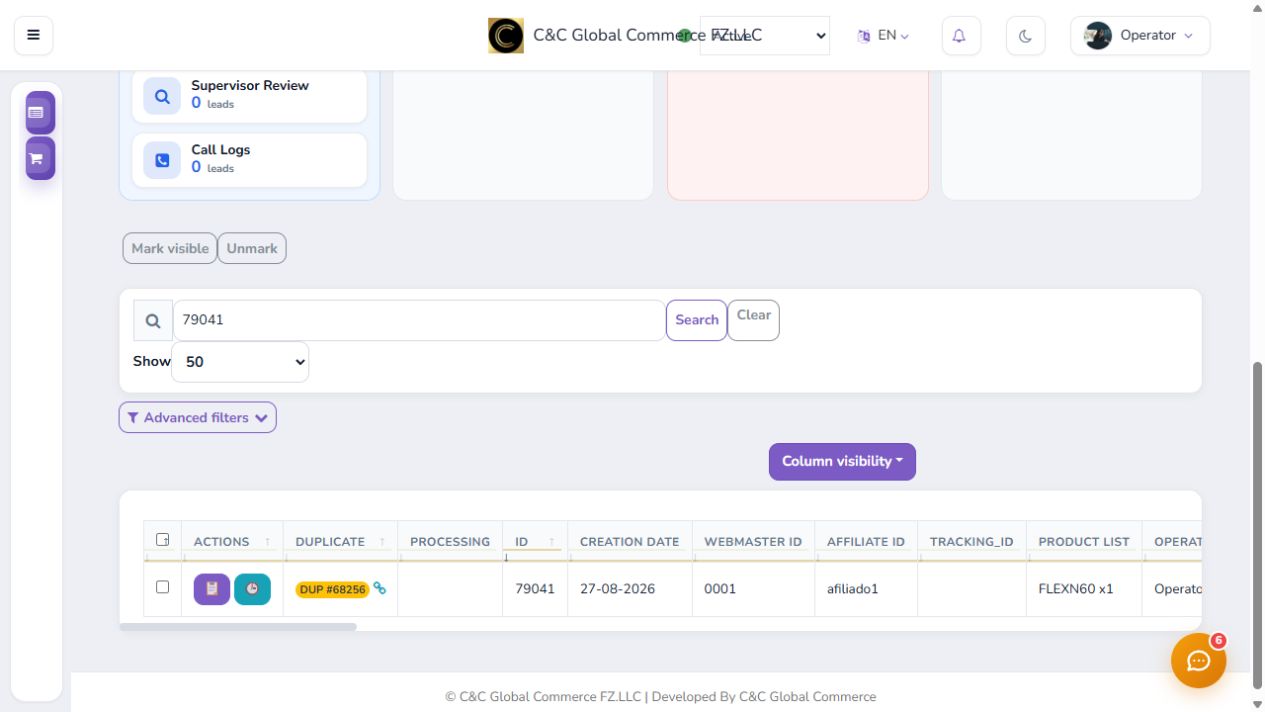
Search for the assigned lead
Use global search by ID, name, or phone. Verify the resulting row and open the card with the actions button.
-
Step 2
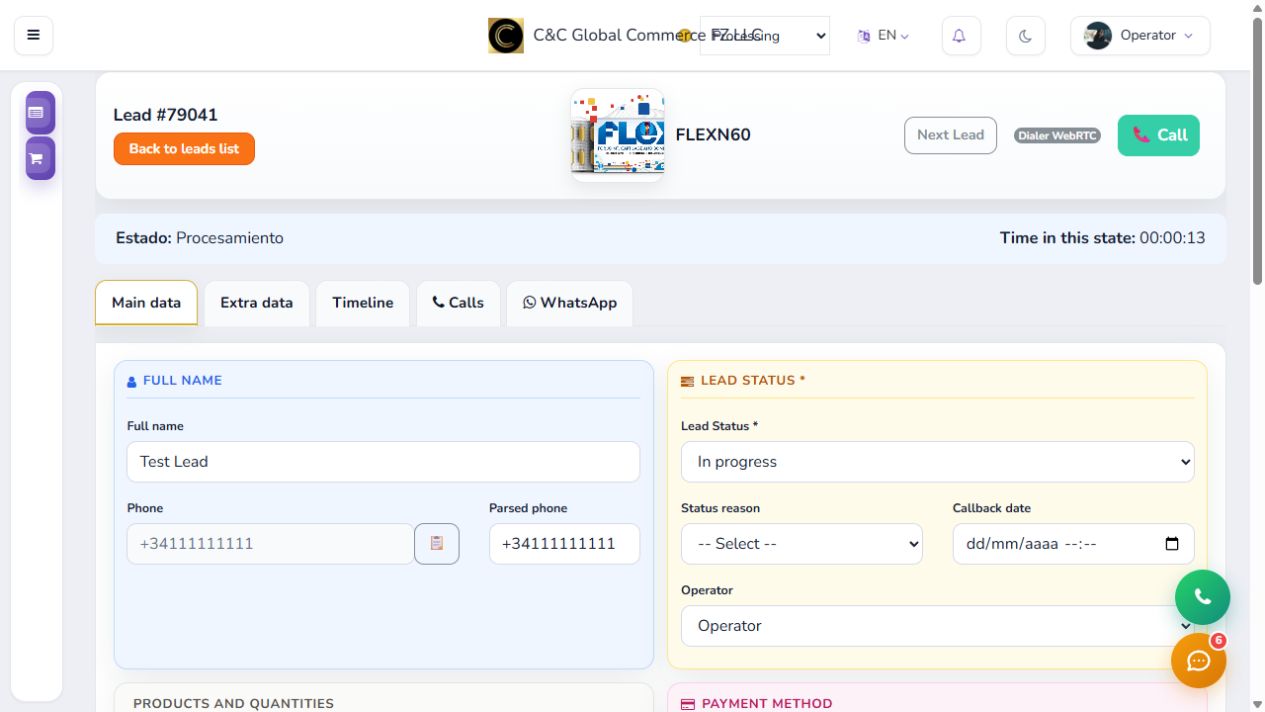
Review and update main data
Check name, phone, status, reason, callback, operator, products, and estimated total. Complete payment, messaging, and address when applicable.
-
Step 3
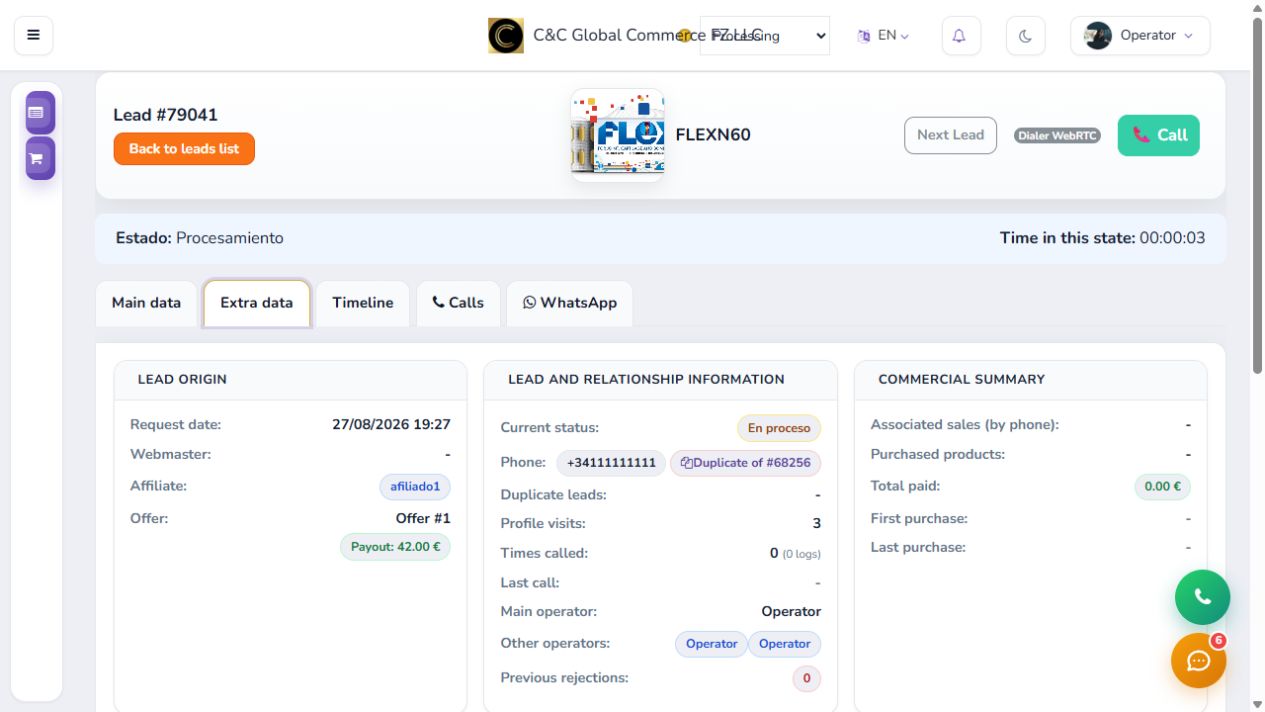
Check additional data
Extra data summarizes the origin, relationships, activity, sales, logistics, confirmation, and technical information of the lead. Use it to understand the context before contacting.
-
Step 4
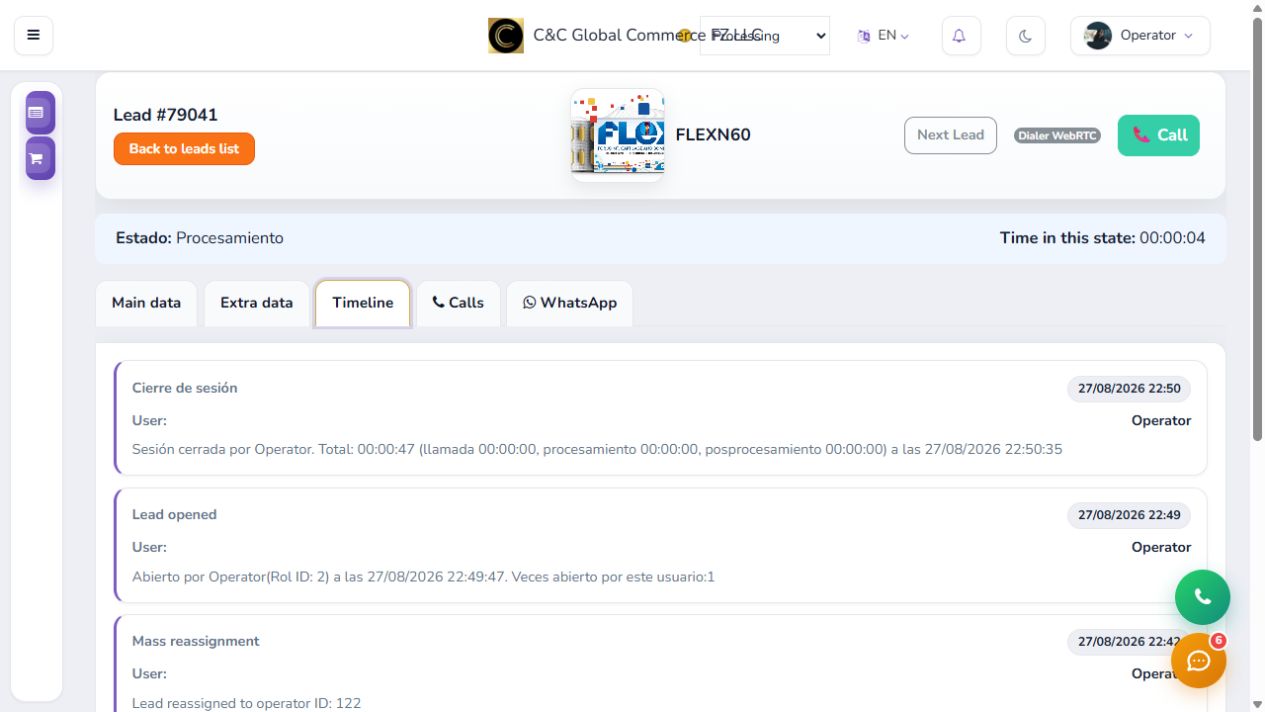
Read change history
Timeline shows openings, reassignments, sessions, and changes made. Check the date and user to reconstruct previous work on the lead.
-
Step 5
Check calls
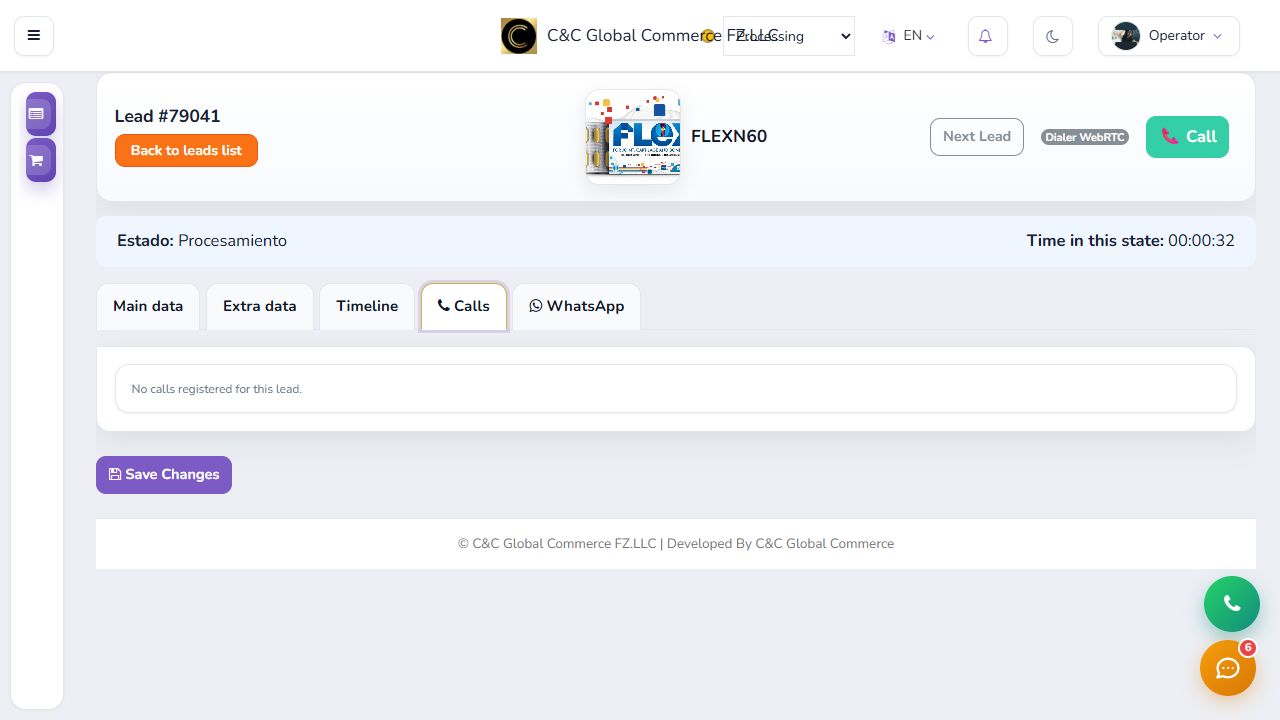
The Calls tab gathers calls associated with the lead. When there are no records yet, the panel clearly indicates this.
-
Step 6
Manage WhatsApp from the card
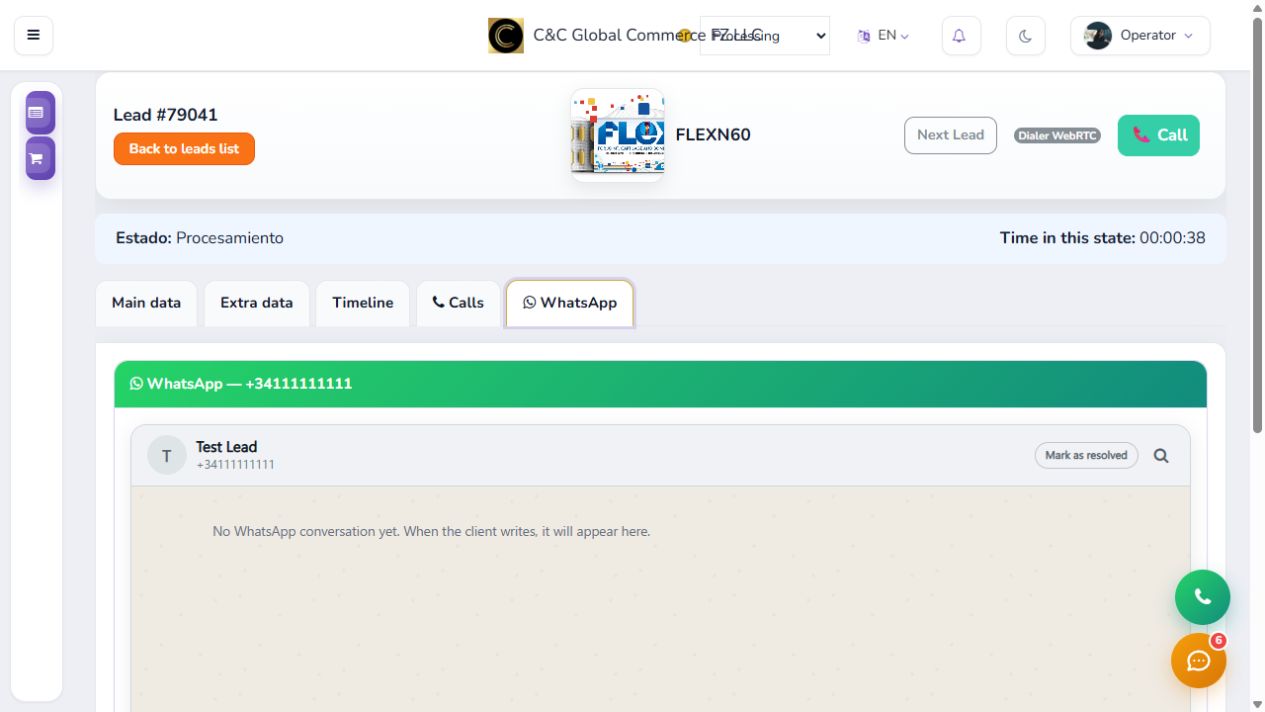
WhatsApp allows you to read the conversation, search messages, respond, attach files, use audio, and mark the conversation as resolved without leaving the lead.
Save changes after each management and use only the address comment field for delivery instructions.