
How to use your customer panel
Log in to your account, check your plan, reload your balance, and change your plan when needed.
-
Step 1
Log in
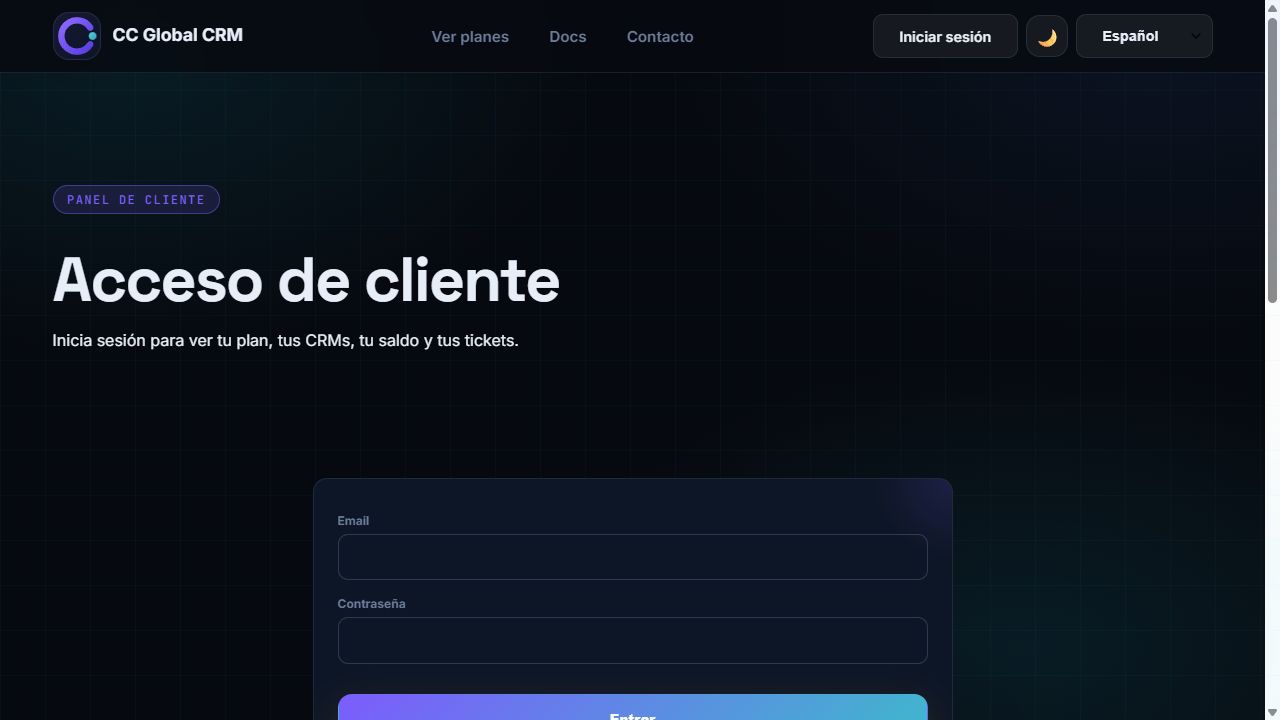
Go to ccglobalcrm.com/client/login with the email and password you used to buy your plan. If it's your first time and you don't have a password, use "Forgot your password?" to create one.
-
Step 2
Create a new account
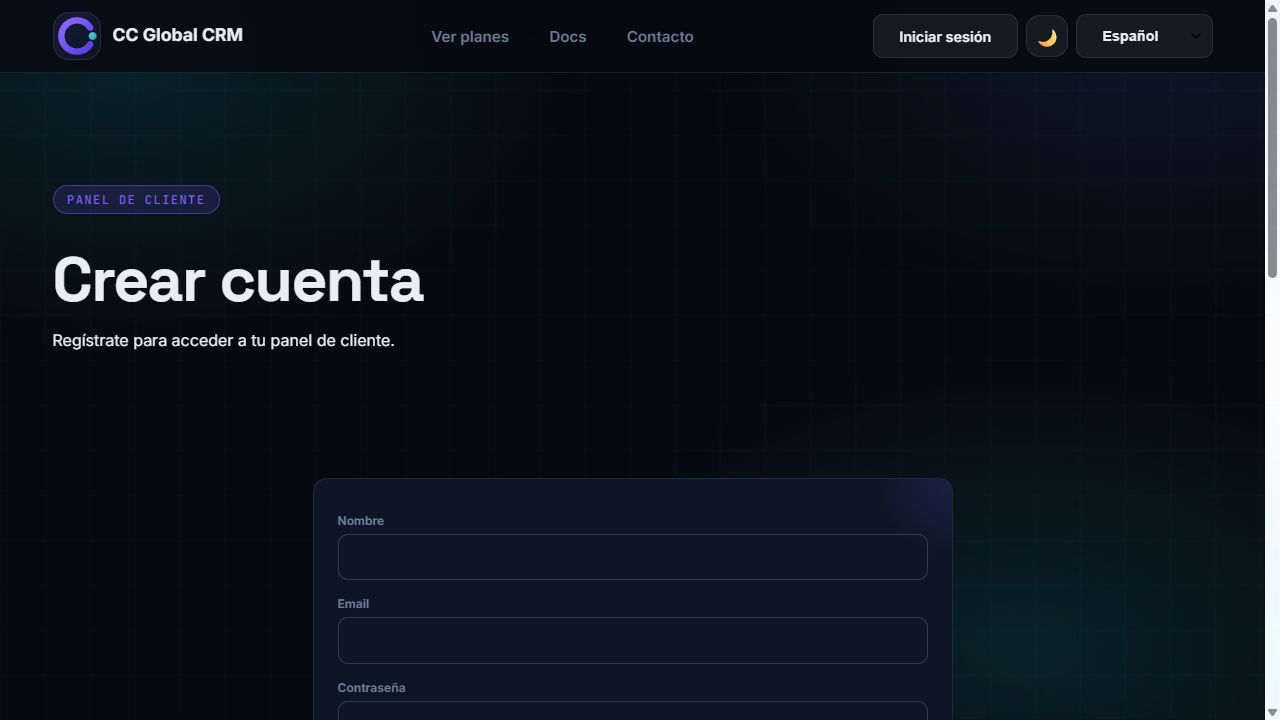
If you don't have an account yet, go to /client/register and register with your name, email, and a password. After that, you can choose a plan from your panel.
-
Step 3
Reset your password
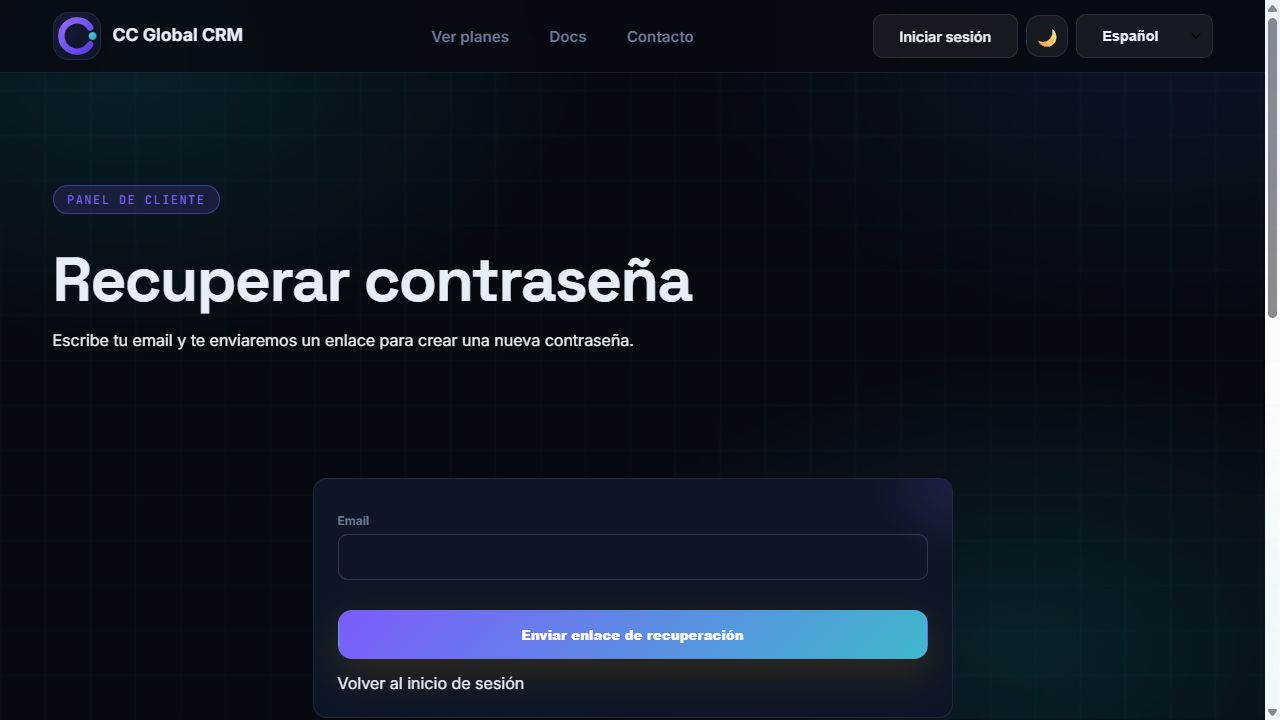
From the login, click "Forgot your password?", enter your email, and we'll send you a link to create a new one. The link expires after an hour.
-
Step 4
Your main panel
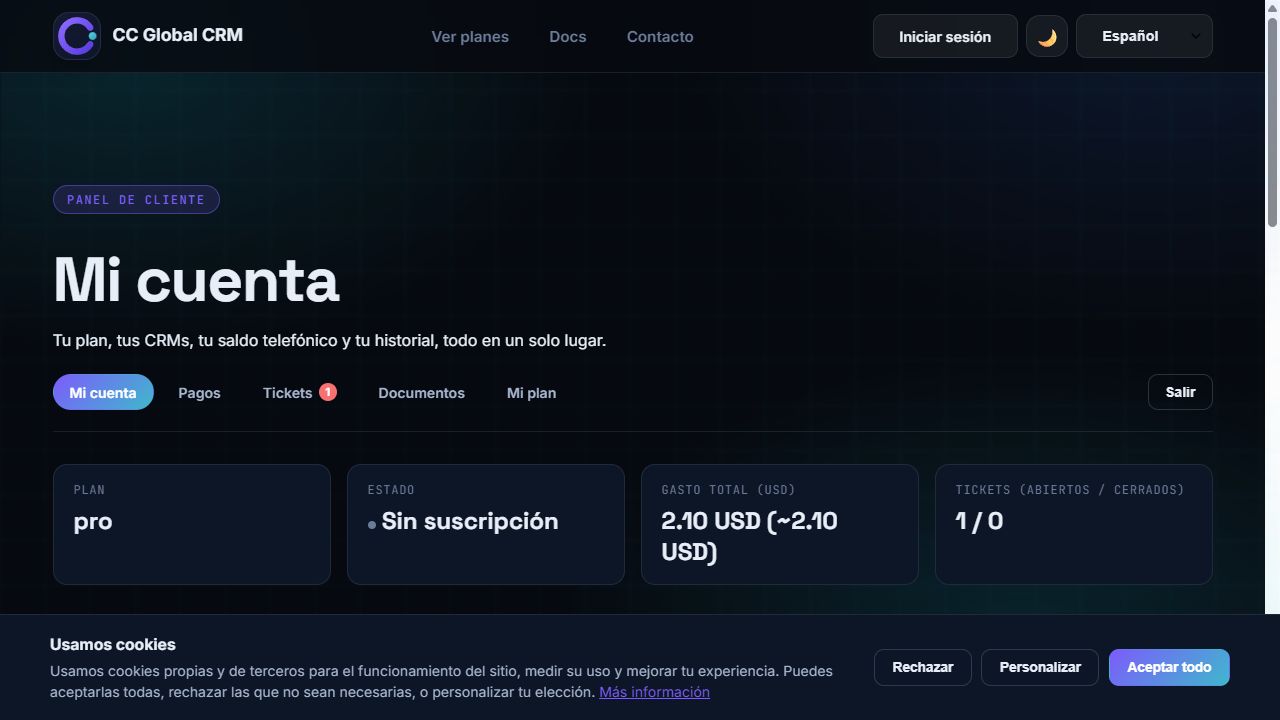
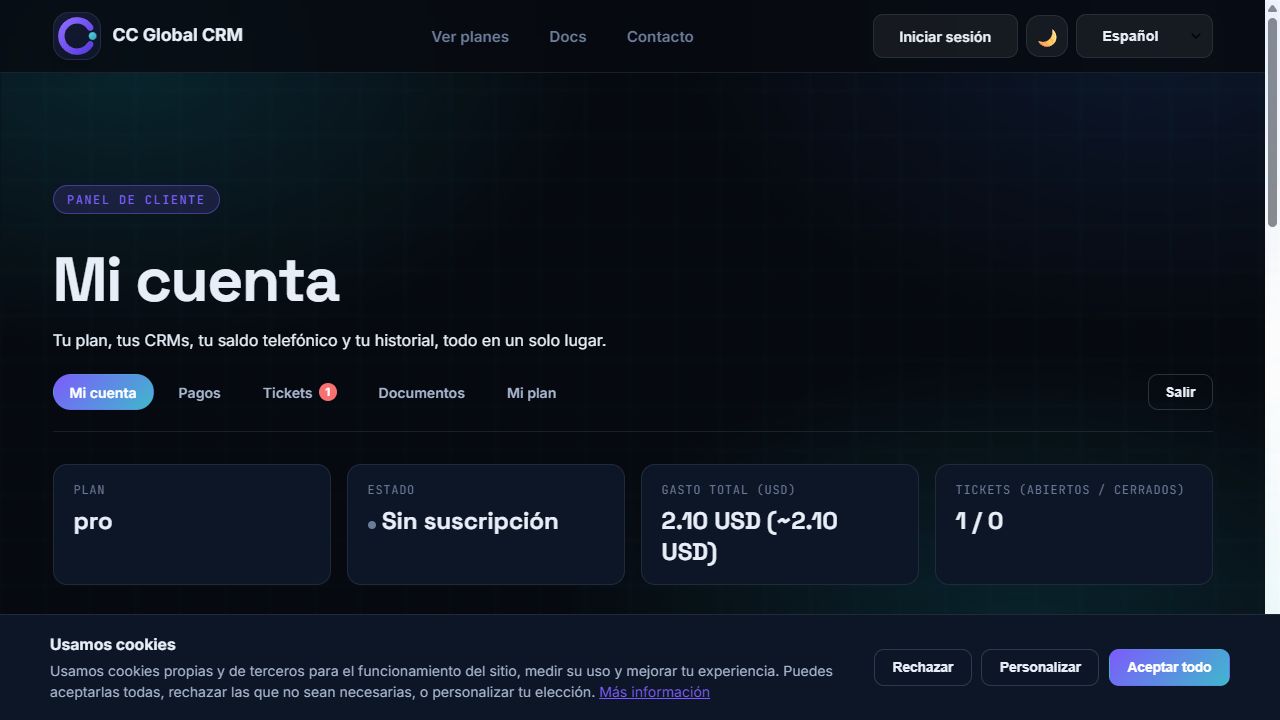
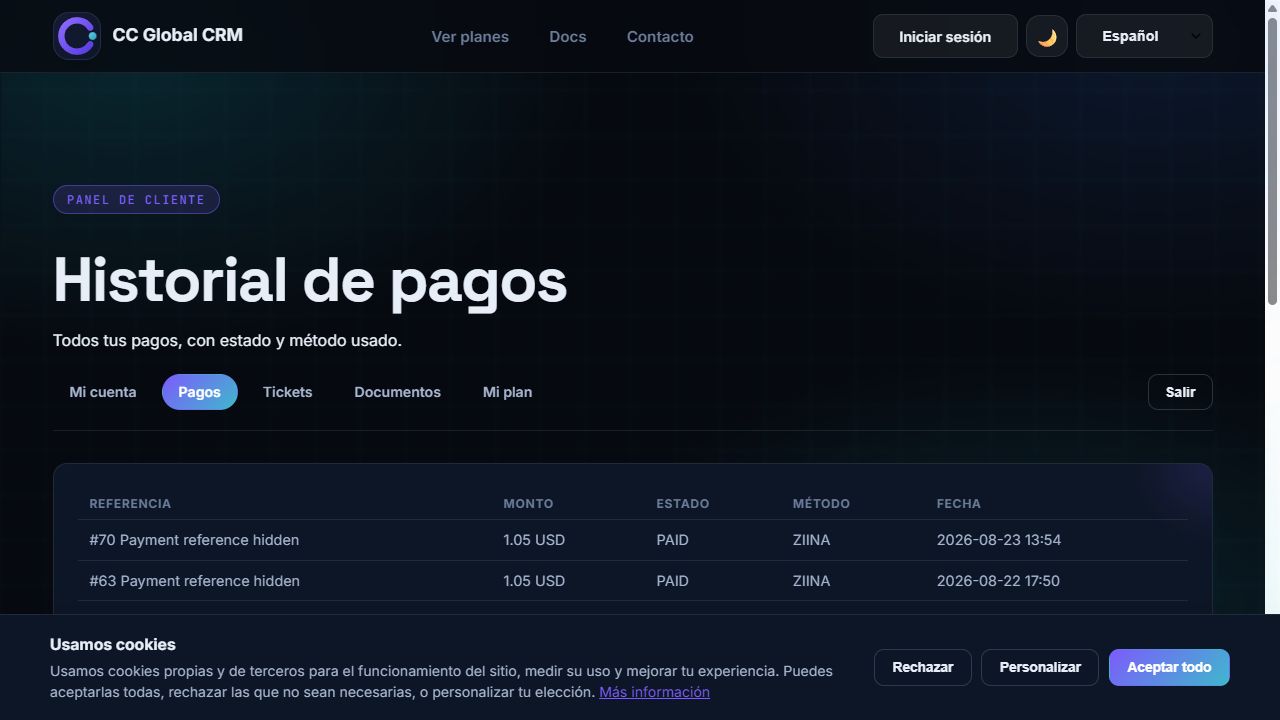
In "My Account" you'll see your plan, the status of your CRM, your phone balance, your latest payments, and your support tickets, all in one place.
-
Step 5
CRM URL, username, and password
On your account card, you'll see the URL of your CRM and the username (your email) to log in. If you need a new password, click "Generate new access password" and we'll send it to your email.
-
Step 6
Reload your phone balance
Click "Reload balance" on your account, choose an amount (or enter your own), and pay with the available method. Your balance is credited automatically once the payment is confirmed.
-
Step 7
Change your plan
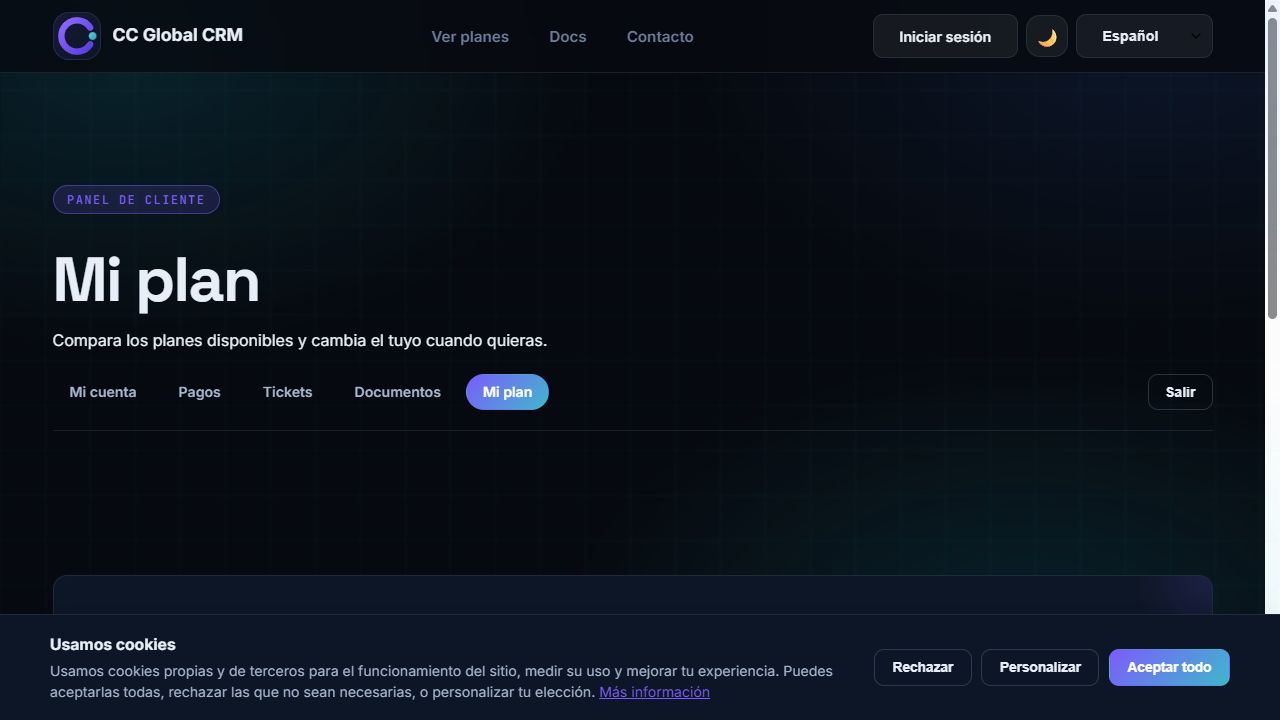
In "My Plan" you can compare the available plans and change yours. Once the payment for the new plan is confirmed, your account is updated automatically.
Can't find something? Open a ticket from your panel and we'll help you.